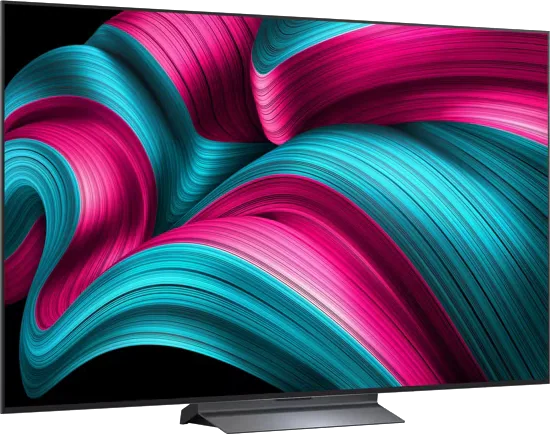
LG · 2025 · WOLED
C5 OLED evo
42 · 48 · 55 · 65 · 77 · 83″
From
$1,500
MOV
BRT
GME
Troubleshooting
Dolby Vision only shows up when the TV, app, plan, cable, settings and sometimes the soundbar all support it. Here is how to find the broken link.
Dolby Vision is a chain. Engadget puts it plainly: every device from the subscription through the source and any connected audio gear has to support it, or you may not be watching at the level you think.
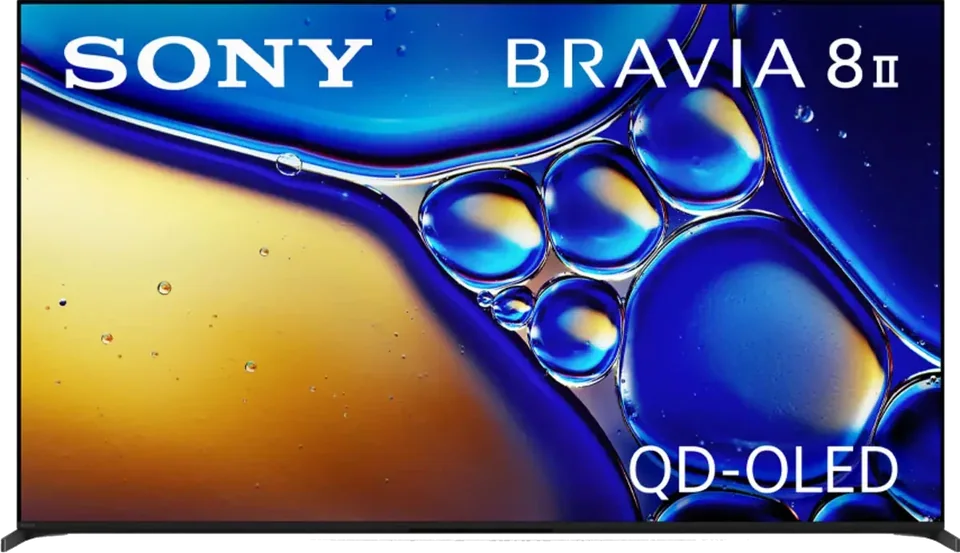
Dolby Vision is not on every TV. Engadget names LG, Sony, TCL and Amazon Fire TV among supporting brands, and our catalog notes that Samsung's S90H, S95H and R95H do not list it. Check your TV's exact spec sheet. For sets that do support it, see LG C5 or Sony Bravia 8 II.
Content must be Dolby Vision. On Netflix, titles carry a Dolby Vision logo, and Engadget says you need the Premium plan for it. Other services have their own rules, so check the plan and the title.
Engadget lists these Netflix checks, and the idea applies to other apps:
If you stream from a phone to a TV, a wired connection or the TV's own app tends to give better results than casting.
Engadget says you need an HDMI cable that supports HDCP 2.2 and a port that supports the high-resolution signal. Use a certified Ultra High Speed cable if you can. Engadget's cable guide says to look for the certification label. Using the TV's built-in app avoids the external cable altogether. If you are using an external player, try another HDMI port. See HDMI handshake problems.
Any receiver or soundbar between the source and the TV must pass the signal through. Engadget says some soundbars support Dolby Vision passthrough and names Bose, Sony, Denon and Hisense among them. To test, connect the player straight to the TV. If Dolby Vision returns, the device in the middle is the issue. Check its firmware and its HDMI passthrough setting.
Engadget says all firmware and software should be up to date. Update the TV, the streaming device and any receiver or soundbar.
Engadget gives these ways to see session details:
TechRadar says motion smoothing can switch on automatically in a TV's Dolby Vision picture mode when it plays Dolby Vision movies and shows. If the picture suddenly looks too smooth, see the soap opera effect.
Good to know
Our catalog notes that the Samsung S90H, S95H and R95H list HDR10+, HDR10 and HLG, and no Dolby Vision. Check your model's spec sheet. LG, Sony, TCL and Amazon Fire TV sets are among those Engadget says support the format.
Engadget says Netflix and Dolby recommend at least 15 Mbps for a smooth, high-quality stream.
Tom's Guide reports Dolby Vision 2 rolling out first by firmware update on selected Hisense TVs, with more sets to follow. It is a newer version of the format and a separate question from basic Dolby Vision playback.
Mentioned in this article
4 sources used for this article. We paraphrase and link, we do not republish.
More troubleshooting
Restart, update, clear the cache, test the network and reinstall in that order. Samsung and Fire TV paths included.
Check the standby light, the outlet, the remote and any surge protector before you assume the TV is broken.
A step-by-step checklist for a silent soundbar: the right port, HDMI-CEC, the TV's sound output and the audio format.
A short letter when something is worth your attention. Unsubscribe any time.