Skip to content
TVReviews

Troubleshooting

TV won't turn on: what the standby light is telling you

Check the standby light, the outlet, the remote and any surge protector before you assume the TV is broken.
By TV Reviews Editors 3 min read
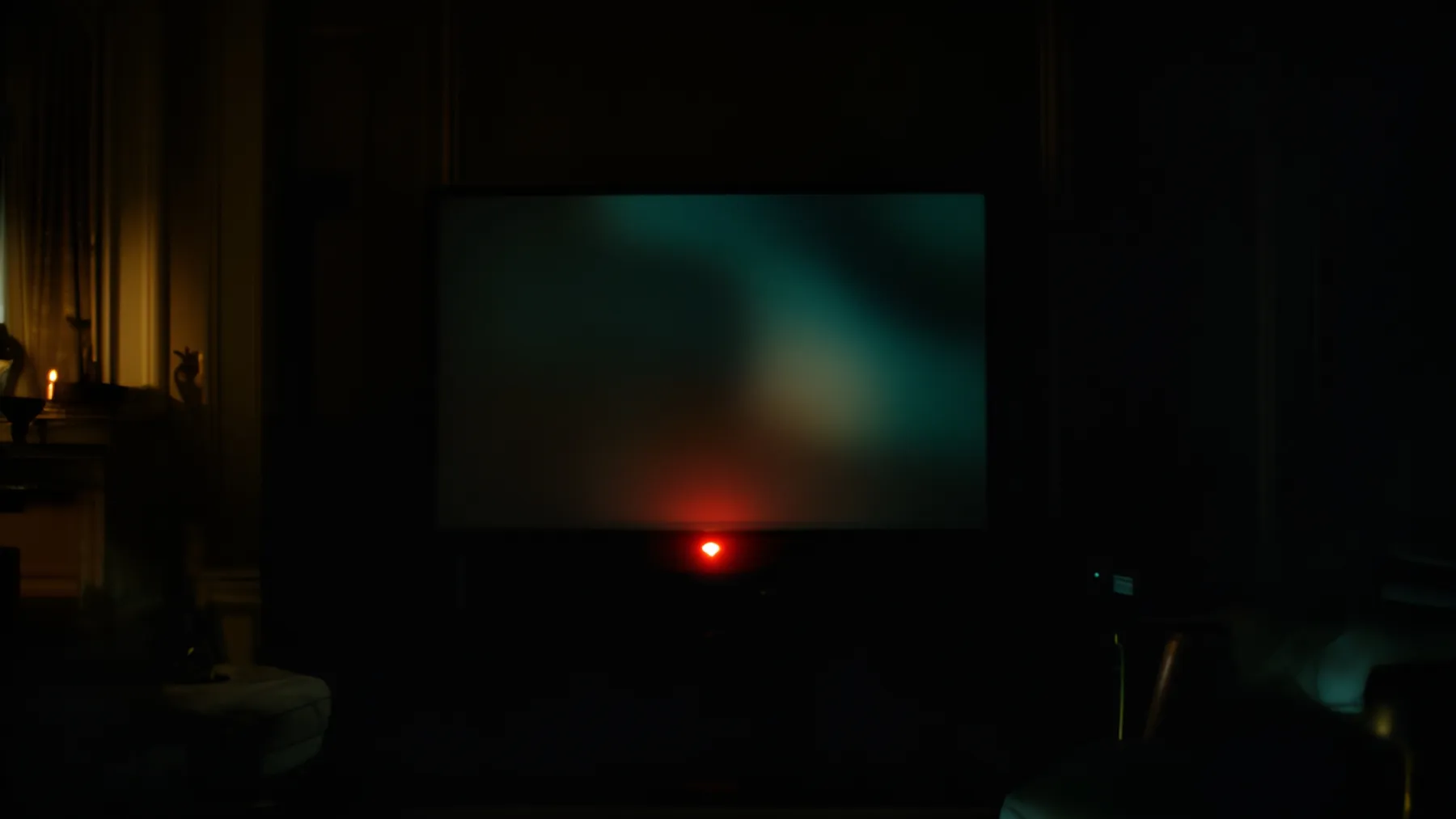
A dark TV with a small red standby light.
In this article
  1. Step 1: Read the standby light
  2. If the standby light is on
  3. If the standby light is off
  4. If the standby light is blinking
  5. If the TV is on but the screen is black
  6. If it turns on by itself or switches input
  7. Before you call support

Key takeaways

  • The standby light shows whether the TV has power. Its state decides which fix to try.
  • Test the TV's own power button to separate a TV problem from a remote problem.
  • Unplug the TV for 30 seconds and plug it straight into a wall outlet that you know works.
  • A blinking standby light can point to a power fault. Contact the manufacturer if the steps fail.

When a TV will not start, the small standby light near the bottom edge tells you where to look. Samsung's support pages describe the cases below, and the logic applies to most brands. Colors and behavior vary, so check your manual.

Step 1: Read the standby light

  • Light is on (red on Samsung): The TV has power. This is normal when it is off.
  • Light is off: The TV is either not getting power or is already on with a black screen.
  • Light is blinking or flashing: Samsung says this points to a power problem or a fault in an internal part.

If the standby light is on

  1. Try the remote. Check the batteries.
  2. If that fails, press the power button on the TV itself. Its location varies by model. Samsung says it is often under the logo, and your manual will show it.
  3. If the TV turns on from its own button, the remote is the issue. Samsung says to re-pair a Smart Remote by pointing it at the TV and holding Return and Play/Pause together for 3 seconds or more.
  4. If the TV will not respond to either, and the light stays on, contact the manufacturer.

If the standby light is off

  1. Make sure the power cord is fully seated at the TV, or at the One Connect Box if your Samsung TV has one, and at the wall.
  2. Unplug the TV for 30 seconds. Samsung also says to unplug any power board or surge protector.
  3. Plug it directly into a wall outlet you know works. Try a different outlet if needed.
  4. If the standby light comes on, the TV is receiving power. The old outlet or the surge protector was the issue.
  5. If the light never comes on in a working outlet, contact the manufacturer.

On a TV with a One Connect Box, Samsung also advises disconnecting and reconnecting the cable between the box and the TV.

If the standby light is blinking

  1. Unplug the TV for 30 seconds, and the One Connect Box if there is one.
  2. Plug it into a known working wall outlet, not a surge protector. Samsung says surge protectors can wear out and stop supplying enough voltage.
  3. If the TV still will not turn on, Samsung says this indicates a problem with the TV and to contact support.

If the TV is on but the screen is black

Samsung notes the TV may actually be on, with a blank screen. Check the selected input. If you are viewing an external device, confirm the device is on and working. See HDMI handshake problems if a console or box is the source.

If it turns on by itself or switches input

Engadget lists HDMI-CEC as a cause of a TV that turns on by itself or keeps changing to another HDMI device. It suggests checking CEC on both devices, reseating or replacing the cable, restarting and updating firmware, and disabling CEC for any device causing trouble. Note that eARC needs CEC to be on.

Before you call support

Have the model number, the standby light behavior and the steps you tried ready. For an active warranty, do not open the TV yourself.

Heads up Do not open the back panel to look for the fault. Leave internal repairs to the manufacturer or a qualified repair shop.

Related: TV apps slow or crashing.

  • power
  • standby-light
  • troubleshooting
  • remote

Good to know

Questions people ask

Is a red light on a Samsung TV normal?

Yes. Samsung says the red standby light is on when the TV is off but plugged in and receiving power, and off when the TV is on. A blinking light points to a power fault.

Can a surge protector stop a TV from turning on?

Samsung says surge protectors can wear out over time and stop supplying enough voltage. It advises plugging the TV directly into a known working outlet and replacing a worn protector.

How do I tell whether the remote or the TV is the problem?

Press the physical power button on the TV. If the TV turns on, the remote is the likely cause.

Mentioned in this article

The products

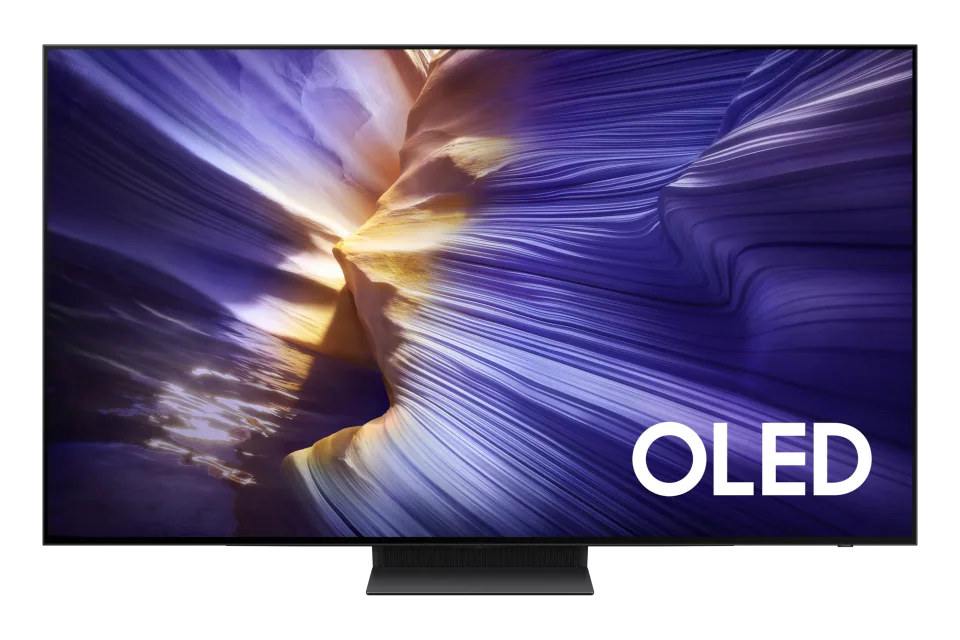
Samsung Samsung S90F OLED

Samsung · 2025

S90F OLED

42 · 48 · 55 · 65 · 77 · 83″

From

$5,400

MOV
BRT
GME
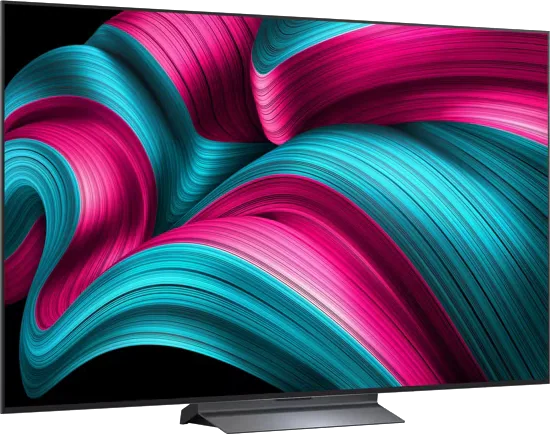
LG LG C5 OLED evo

LG · 2025 · WOLED

C5 OLED evo

42 · 48 · 55 · 65 · 77 · 83″

From

$1,500

MOV
BRT
GME

Sources and further reading

3 sources used for this article. We paraphrase and link, we do not republish.

  1. What to do if your Samsung TV won't turn on · Samsung Africa · May 22, 2023
  2. How to Troubleshoot the Samsung TV that will not Turn On · Samsung Australia
  3. How to set up HDMI-CEC on your Samsung TV · Engadget · Sep 13, 2026

More troubleshooting

Keep reading

Get the next one in your inbox

A short letter when something is worth your attention. Unsubscribe any time.