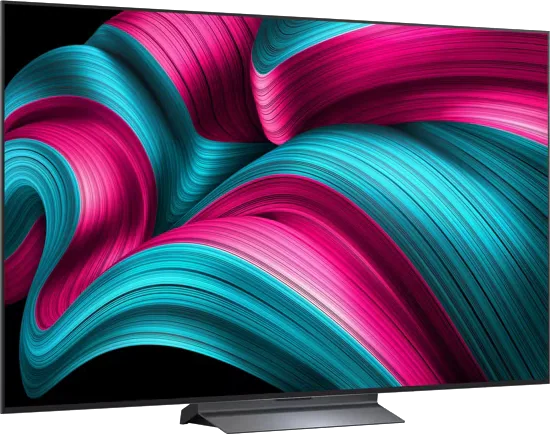
LG · 2025 · WOLED
C5 OLED evo
42 · 48 · 55 · 65 · 77 · 83″
From
$1,500
MOV
BRT
GME
Troubleshooting
Movies that look too smooth are the work of motion smoothing. Here is why it happens and where each brand hides the switch.

If a film looks like a daytime TV show, the culprit is motion smoothing, a processing feature on nearly every modern TV.
Movies are shot at 24 frames per second, and that slightly choppy rhythm is part of their look. Motion smoothing (also called motion interpolation) guesses the frames between the real ones and inserts them. TechRadar explains that TV makers added it to reduce motion blur and judder, which is visible stutter, particularly on 60Hz TVs that cannot show 24fps cleanly. With extra frames added, films appear to move too fast and too clear. That is the soap opera effect.
The UHD Alliance created Filmmaker Mode in part to counter it. An Ars Technica report from 2019 says the mode disables motion smoothing, was developed with input from filmmakers, and can be switched on by a button or by metadata in the content.
TechRadar says the Movie mode generally disables motion smoothing, while most other presets use some level of it. Tom's Guide says Filmmaker Mode strips heavy sharpening and artificial contrast boosts as well. Some brands keep minimal motion processing active even in this mode, so check the motion menu after switching.
Names change by brand, which is why searching the menus can feel hopeless. TechRadar and Tom's Guide report these:
| Brand | Name to look for |
|---|---|
| Samsung | Picture Clarity (called clarity settings) |
| LG | TruMotion, found under Clarity |
| Sony | Motionflow |
| Panasonic | Intelligent Frame Creation |
| Philips | Smoothness, its judder control |
| Hisense | A motion submenu with blur and judder reduction |
| TCL | Judder and blur sliders (TechRadar tested them on the C7K and QM7K) |
LG example from TechRadar, for the C5: Settings > Picture Settings > Advanced Picture Settings > Clarity, then the TruMotion menu. The same tester says motion settings usually sit under a clarity-type submenu, though the exact area differs from TV to TV. If your brand is not on this list, search the picture menus for motion, clarity or smoothing, and check the manual.
Many sets have two sliders, one for blur reduction and one for judder reduction. Setting both to zero or choosing the Off preset removes the effect.
TechRadar's James Davidson says budget and 60Hz TVs often need some smoothing, because 24fps film cannot map evenly to a 60Hz panel. On a 120Hz TCL QM7K or C7K, he found judder in sports until he set blur and judder reduction to 3 out of 10, which helped without bringing back the soap opera look. TechRadar's other tester says three or under is usually an acceptable range. He also found that LG's OLED motion menu has a Cinematic Movement option, a mild form of smoothing meant to keep the film look while steadying panning shots.
If sports look choppy after you turn smoothing off, try a low setting rather than all the way back up.
TechRadar says motion smoothing can switch on automatically in a Dolby Vision picture mode when it plays Dolby Vision content. After enabling Dolby Vision, check the motion settings again.
For a broader first-pass tune, see best TV picture settings. Catalog examples: LG C5, TCL QM7L.
Good to know
TechRadar explains that soap operas were shot at higher frame rates than most movies, which gave their motion a hyperreal smoothness. Motion smoothing gives films a similar look.
TechRadar says Filmmaker Mode is meant to turn off enhancement features including motion smoothing, though some brands now keep minimal motion processing active.
Not always. TechRadar says budget and 60Hz TVs can look juddery without it, and one tester found a low setting of 3 out of 10 helped sports on a 120Hz TCL without causing the effect.
Mentioned in this article
LG · 2025 · WOLED
42 · 48 · 55 · 65 · 77 · 83″
From
$1,500
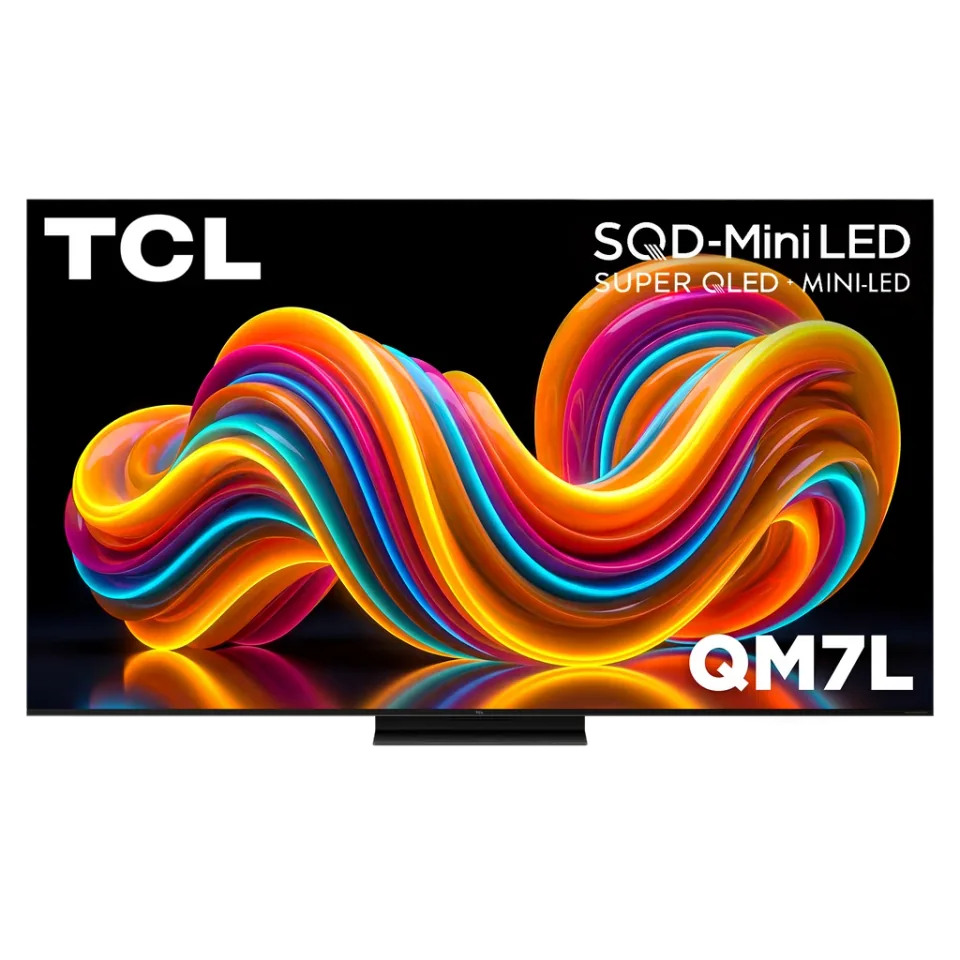
TCL · 2026 · Mini LED
55 · 65 · 75 · 85 · 98″
From
$699.99
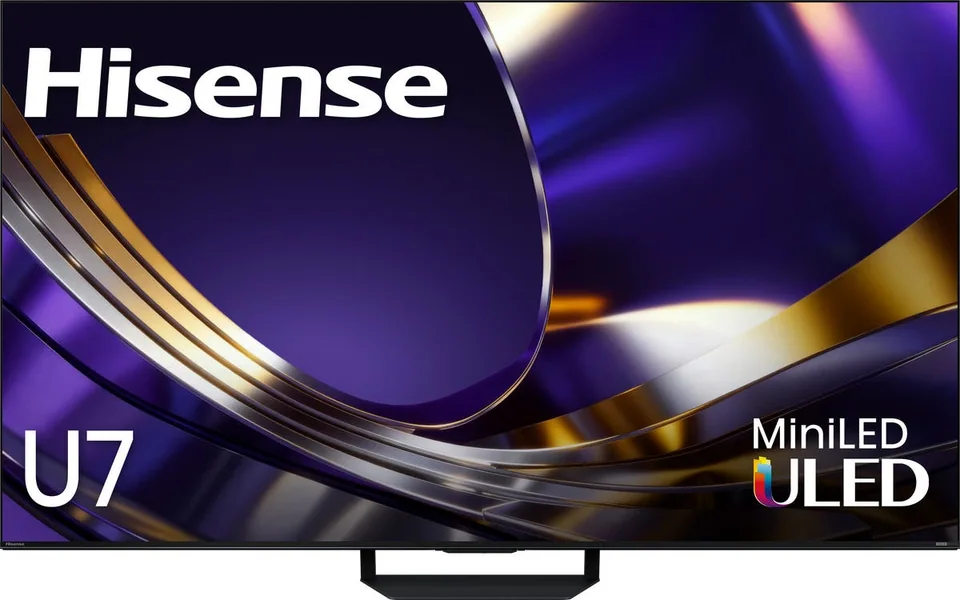
Hisense · 2026 · Mini LED
55 · 65 · 75 · 85 · 100″
List from
$1,298
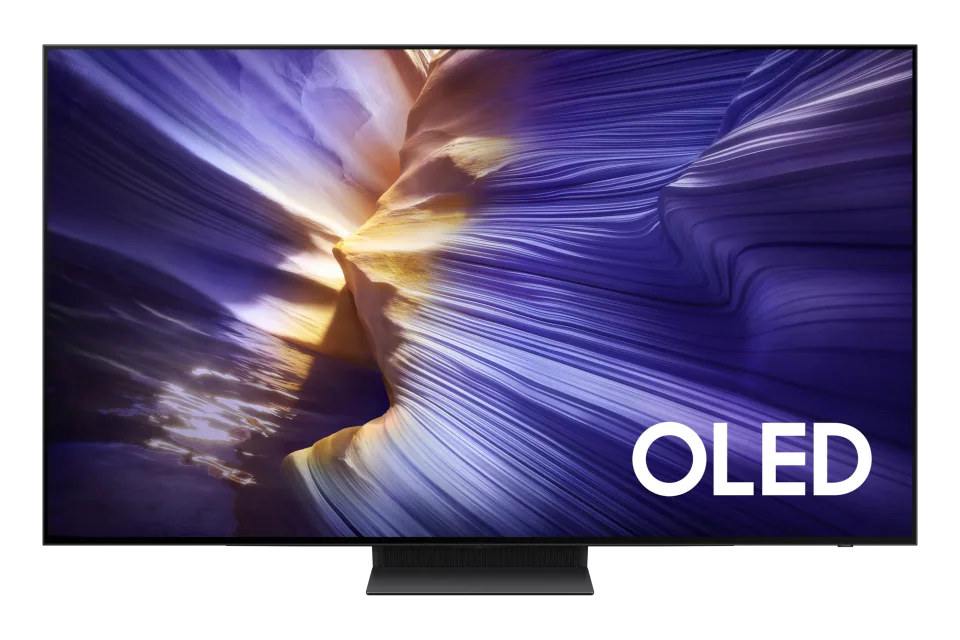
Samsung · 2025
42 · 48 · 55 · 65 · 77 · 83″
From
$5,400
5 sources used for this article. We paraphrase and link, we do not republish.
More troubleshooting
Restart, update, clear the cache, test the network and reinstall in that order. Samsung and Fire TV paths included.
Check the standby light, the outlet, the remote and any surge protector before you assume the TV is broken.
Dolby Vision only shows up when the TV, app, plan, cable, settings and sometimes the soundbar all support it. Here is how to find the broken link.
A short letter when something is worth your attention. Unsubscribe any time.