Skip to content
TVReviews

Setup guide

PS5 and Xbox TV settings: 4K120, VRR, HDR and game mode

What each gaming feature does, the cable and port you need, and the TV-side switches to check before you blame the console.
By TV Reviews Editors 3 min read
A game controller on a table in front of a dim TV.
In this article
  1. What the features mean
  2. Step 1: Use the right cable
  3. Step 2: Use the right TV port
  4. Step 3: Turn on game mode on the TV
  5. Step 4: Set the console output
  6. Step 5: Test

Key takeaways

  • 4K at 120Hz needs HDMI 2.1 on both the TV port and the cable. HDMI 2.0 tops out at 4K60.
  • VRR smooths out frame-rate dips. ALLM switches the TV into low-latency mode automatically.
  • Plug the console into the TV input that supports the features you want, and use an Ultra High Speed cable.
  • Keep game mode for games. Movies look better in a cinema-style picture mode.

A console will only deliver its best modes if the TV, the HDMI port, and the cable all support them. Work through these in order.

What the features mean

  • 4K at 120Hz. Four times the pixels of 1080p, drawn 120 times a second. The HDMI Forum lists 4K120 among the resolutions in its HDMI 2.1 and later specification. Engadget says HDMI 2.0 is limited to 4K at 60Hz.
  • VRR (variable refresh rate). Lets the console send each frame as soon as it is ready instead of at a fixed pace. The HDMI Forum says this reduces lag, judder and screen tearing.
  • ALLM (auto low latency mode). The console signals the TV to switch to a low-lag mode and switch back afterward. The HDMI Forum points out that low-latency settings can switch off some picture processing, so you do not want them for movies.
  • HDR. Gives brighter highlights and deeper shadows in games that support it. Turn it on in the console's video settings as well as on the TV input.

Step 1: Use the right cable

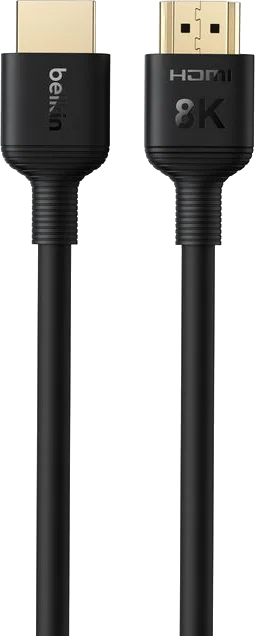
Cable names matter more than version numbers. Engadget says to buy by category: Ultra High Speed HDMI cables support up to 48Gbps, which covers 4K120. Look for the certification label on the packaging. Engadget also reports that Sony, for PS5 4K120 problems, recommends the cable that shipped with the console or an Ultra High Speed cable rated for 4K120. Catalog example: Belkin Ultra HD HDMI 2.1 cable.

Step 2: Use the right TV port

Not every HDMI port on a TV supports the same features. Check your TV's manual or our model pages for which inputs handle 4K120, VRR and eARC, and plug the console into one of those. Samsung also warns that if you cannot turn on game mode, the device may be plugged into the wrong HDMI port or the source may not be selected. Then check the TV's input list to make sure the source matches the port.

Step 3: Turn on game mode on the TV

Samsung says game mode switches on automatically when it detects a console, and it can be switched on manually. Samsung Australia lists these paths:

  • 2025 models: open Settings, then All Settings, go to Advanced Features, choose Game Mode Settings and switch Game Mode on.
  • 2023 and 2024 models: Game Mode Settings sits under Connection, inside All Settings.
  • 2022 models: same Connection menu, reached via Home, then Menu, then Settings.
  • 2017 to 2021 models: the setting is in General, under External Device Manager.

Samsung adds that picture mode and sound mode switch to game settings automatically in game mode. For other brands, TechRadar notes that a Game preset reduces input-lag processing and often adds an on-screen quick menu. The preset name and location vary by brand and model, so check the picture settings and your manual.

Step 4: Set the console output

Each console has its own video output screen where you choose resolution, refresh rate, VRR and HDR. Menu names change with system updates, and this guide could not verify the current paths on Sony's or Microsoft's support pages. Open your console's display or video output settings, look for 120Hz, VRR and HDR options, and confirm the console recognizes your TV. Engadget gives one verified PS5 path for HDMI control: Settings > System > HDMI > Enable HDMI Device Link.

Step 5: Test

  1. Start a game that supports 120Hz and VRR.
  2. Check that the TV shows a game or VRR indicator, if it has one.
  3. If the picture drops out or the console falls back to 60Hz, see 4K 120Hz not working and HDMI handshake problems.
Heads up Switch back to a cinema-style picture mode for movies. Game mode trades some picture processing for speed.

See also: Best TV picture settings and our TV finder for sets with strong gaming features.

  • ps5
  • xbox
  • 4k120
  • vrr
  • game-mode
  • setup

Good to know

Questions people ask

Do I need HDMI 2.1 for a PS5 or Xbox Series X?

Only for 4K at 120Hz. Engadget says HDMI 2.0 caps 4K at 60Hz, so a 120Hz game would have to drop to 1080p to reach 120Hz. Most streaming does not need more than 4K60.

What is ALLM?

Auto Low Latency Mode lets a console tell the TV to switch to a low-lag mode automatically, then switch back when you leave the game. The HDMI Forum says it removes the need to dig through menus.

Is game mode good for movies?

Usually not. HDMI.org notes that a low-latency mode can switch off some TV processing, and Samsung says game mode is not available for normal TV viewing.

Mentioned in this article

The products

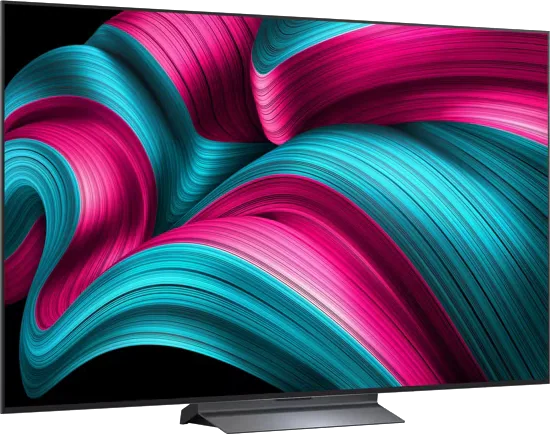
LG LG C5 OLED evo

LG · 2025 · WOLED

C5 OLED evo

42 · 48 · 55 · 65 · 77 · 83″

From

$1,500

MOV
BRT
GME
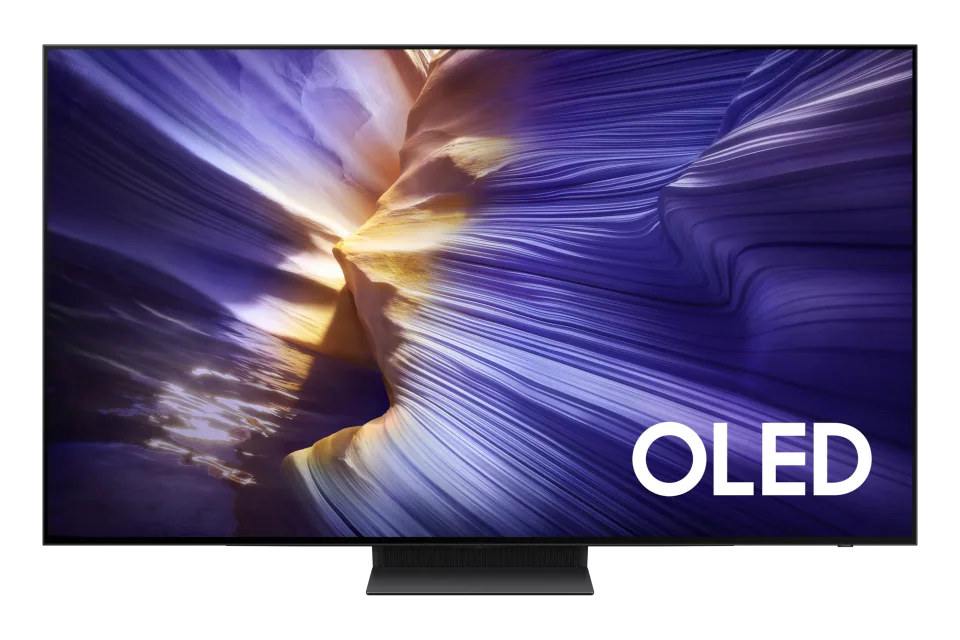
Samsung Samsung S90F OLED

Samsung · 2025

S90F OLED

42 · 48 · 55 · 65 · 77 · 83″

From

$5,400

MOV
BRT
GME
TCL TCL QM7L SQD-Mini LED

TCL · 2026 · Mini LED

QM7L SQD-Mini LED

55 · 65 · 75 · 85 · 98″

From

$699.99

MOV
BRT
GME
Belkin Belkin Connect Ultra High-Speed HDMI Cable (8K)

Belkin

Connect Ultra High-Speed HDMI Cable (8K)

HDMI cable

From

$16.99

Sources and further reading

7 sources used for this article. We paraphrase and link, we do not republish.

  1. HDMI for Gaming - Superior Gameplay Experience · HDMI Forum / HDMI LA
  2. Variable Refresh Rate (VRR) · HDMI Forum / HDMI LA
  3. Auto Low Latency Mode (ALLM) · HDMI Forum / HDMI LA
  4. HDMI 2.0 vs 2.1: Why you don't need the upgrade for streaming · Engadget · Jun 23, 2026
  5. Are expensive HDMI cables worth it? · Engadget · Sep 1, 2026
  6. Game Mode Settings on your Samsung TV · Samsung Australia
  7. Bought a new 4K TV on Black Friday? Here's how to adjust it for the best picture · TechRadar

More setup guide

Keep reading

Get the next one in your inbox

A short letter when something is worth your attention. Unsubscribe any time.