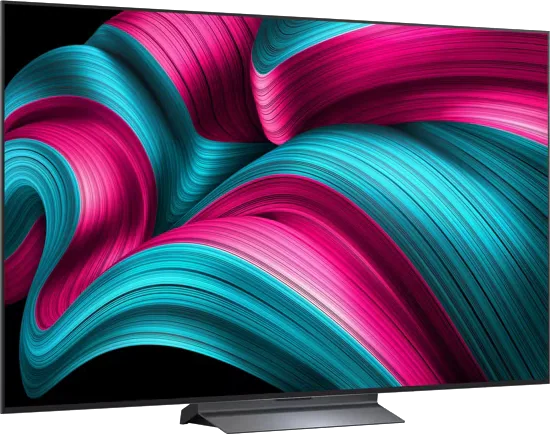
LG · 2025 · WOLED
C5 OLED evo
42 · 48 · 55 · 65 · 77 · 83″
From
$1,500
MOV
BRT
GME
Setup guide
Five quick changes that fix most new-TV picture problems, plus where to find motion smoothing on each major brand.

Most TVs ship set up to look impressive under shop lights, not to look right at home. A few changes get you most of the way.
Open the picture settings and look for the list of presets (also called picture modes). Choose Filmmaker Mode, Movie or Cinema as a starting point. TechRadar says Movie gives the most natural color balance and also disables the motion smoothing that causes the soap opera look. If it seems too dim for a bright room, try Standard, which TechRadar suggests for daytime viewing.
Filmmaker Mode came from the UHD Alliance, working with filmmakers and TV makers. VIZIO announced in 2019 that it would add it to its 2020 TVs. Tom's Guide says it strips out heavy sharpening and contrast boosts and sets a warm, accurate color temperature, which can look slightly yellow for the first few minutes.
TechRadar and Tom's Guide both point to Eco modes as a common cause of a dull picture. Many TVs ship in Eco mode to meet energy rules. It lowers brightness, and an ambient light sensor can dim the screen when the room gets dark. Switch the preset away from Eco, then look in General or System settings for Power Saving or Energy Saving and turn off anything that caps brightness.
TechRadar calls Dynamic (sometimes Vivid) the most inaccurate mode, with oversaturated color and exaggerated texture. It notes that even Samsung flagships look better in Filmmaker, Movie or Standard.
Motion smoothing (also called motion interpolation) makes the TV invent extra frames between real ones. It can help sports and fast pans, but it makes films look unnaturally smooth. TechRadar adds that a TV can switch it on by itself in a Dolby Vision picture mode. For a deeper explanation, see the soap opera effect.
Where to look, based on what the sources report:
| Brand | Setting name | Where TechRadar or the maker places it |
|---|---|---|
| Samsung | Picture Clarity | Under Picture settings. Samsung's picture guide puts fine adjustments in Settings > All Settings > Picture > Expert Settings, but check where Picture Clarity sits on your model |
| LG | TruMotion, inside Clarity | Settings > Picture Settings > Advanced Picture Settings > Clarity, as shown on the LG C5 |
| Sony | Motionflow | Location varies by model |
| Panasonic | Intelligent Frame Creation | Location varies by model |
| Hisense | Motion submenu with blur and judder sliders | Picture settings, as shown on the U7N |
| Philips | Smoothness (its judder control) | Location varies by model |
Menu paths vary by model and year, so treat these as a map rather than a promise. If your brand is not listed, search the picture menus for motion, clarity or smoothing.
TechRadar says the Game preset reduces processing that adds input lag, and on many TVs it opens a quick menu for gaming adjustments. For the full console setup, see PS5 and Xbox TV settings.
TechRadar recommends checking for a software update when you set up a new TV, because updates add features and fix security issues. If you have changed many settings and lost track, Samsung's own guide shows a reset: Settings > Picture > Expert Settings > Reset Picture. If the option is greyed out, close any running app first.
Stuck with a pale, low-contrast image? See TV picture looks washed out.
Good to know
It is a picture mode developed by the UHD Alliance with input from filmmakers, intended to show movies and shows the way they were made. Tom's Guide says it removes heavy sharpening and contrast boosts and uses a warm, standard color balance.
Not always. TechRadar treats Movie, Cinema and Filmmaker as the accurate presets to start from, but names and exact behavior differ by brand. Standard is the brighter alternative for bright rooms.
TechRadar generally recommends it for movies, but budget and 60Hz TVs can look juddery on sports and film, so a low setting can help. Three out of ten or lower is the range TechRadar calls usually acceptable.
Mentioned in this article
LG · 2025 · WOLED
42 · 48 · 55 · 65 · 77 · 83″
From
$1,500
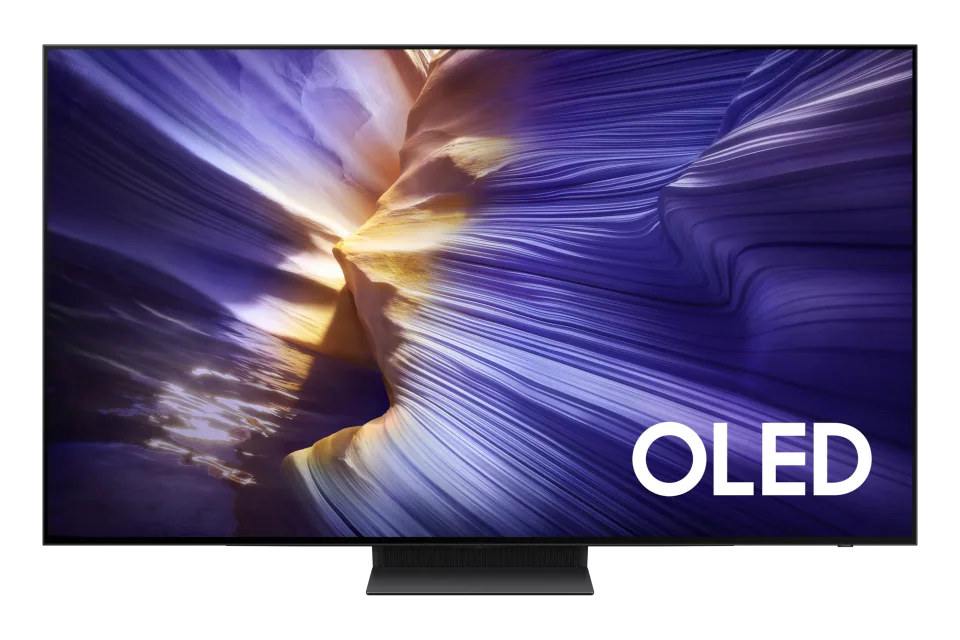
Samsung · 2025
42 · 48 · 55 · 65 · 77 · 83″
From
$5,400
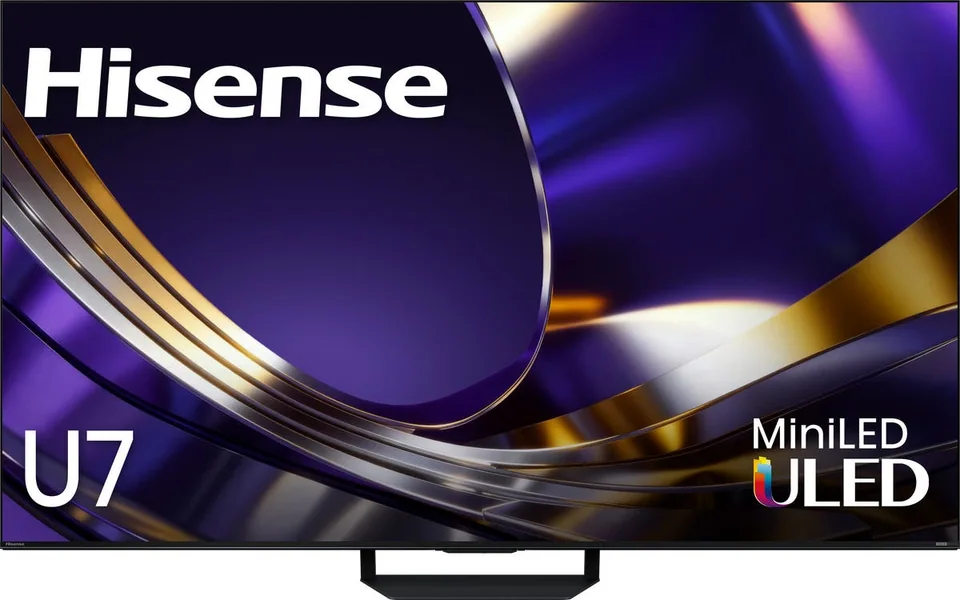
Hisense · 2026 · Mini LED
55 · 65 · 75 · 85 · 100″
List from
$1,298
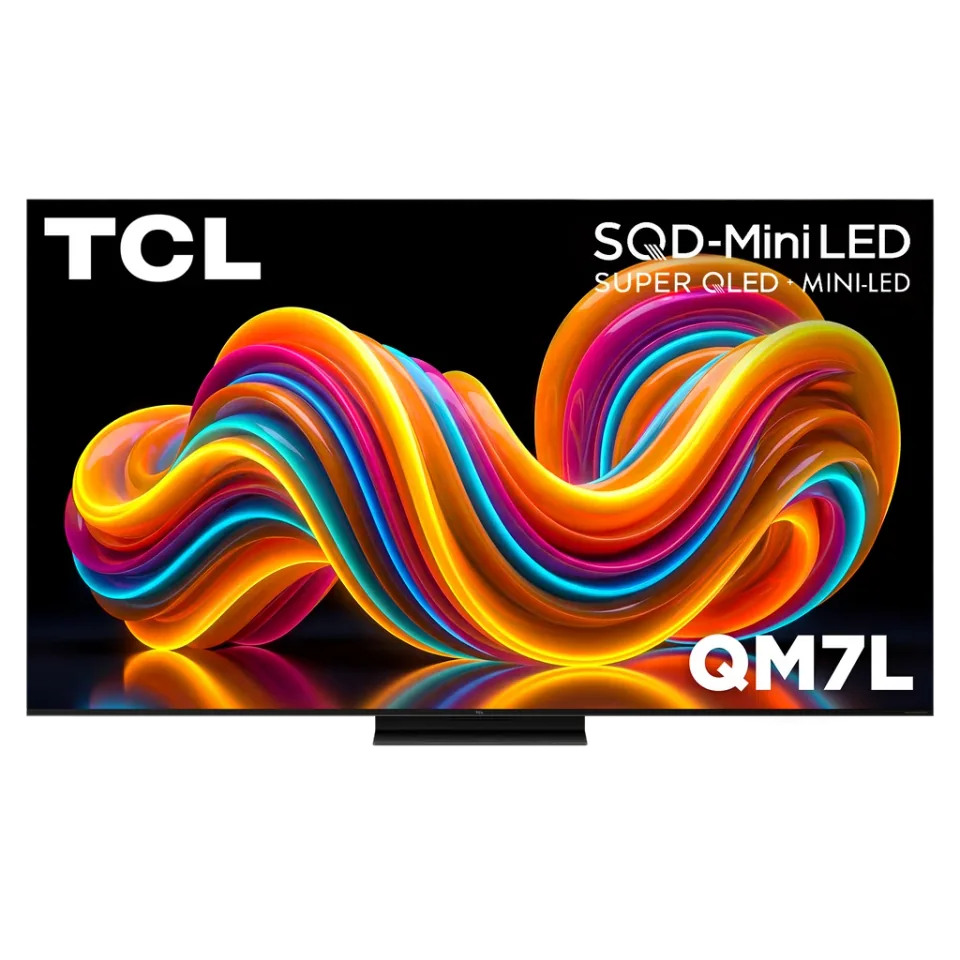
TCL · 2026 · Mini LED
55 · 65 · 75 · 85 · 98″
From
$699.99
7 sources used for this article. We paraphrase and link, we do not republish.
More setup guide

Two ways to clear the cable clutter under a wall-mounted TV, and the safety lines you should not cross.

Four mount styles, what each is good at, and the two numbers that decide whether a mount will fit your TV.

What to check before you drill: where the studs are, whether the mount matches your TV, and when to hand the job to a professional.
A short letter when something is worth your attention. Unsubscribe any time.