Skip to content
TVReviews

Troubleshooting

OLED care and image retention: refresh cycles and what to avoid

How image retention and burn-in differ, what your OLED does automatically, and the habits that keep a panel healthy.
By TV Reviews Editors 3 min read
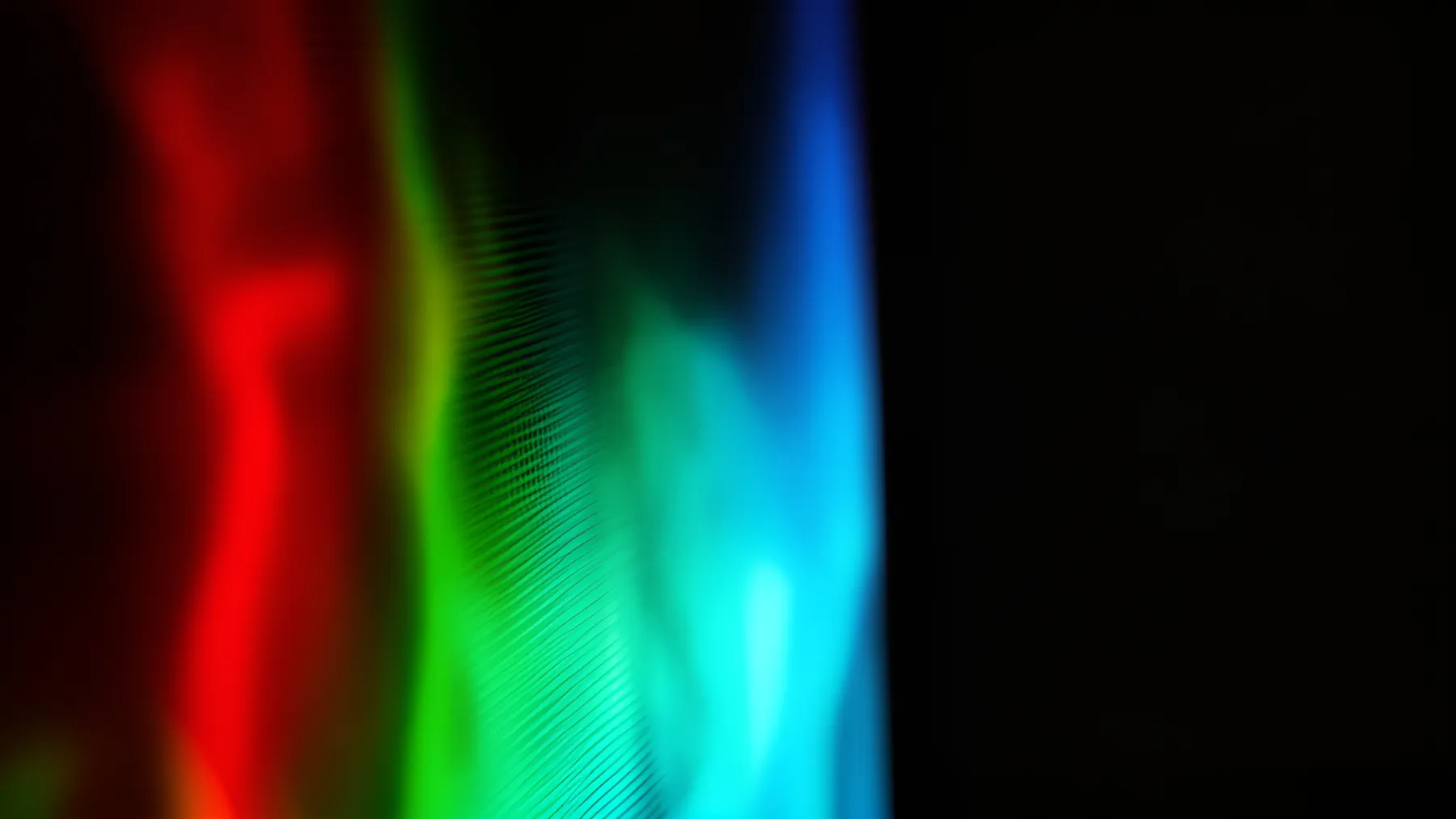
Tiny glowing red, green and blue pixels fading into darkness.
In this article
  1. Retention versus burn-in
  2. What your OLED does for you
  3. What to avoid
  4. If you see retention
  5. Putting the risk in perspective

Key takeaways

  • Image retention is a faint ghost of a static image. Burn-in is permanent wear.
  • OLEDs run maintenance features such as panel refresh, logo dimming and screen savers. Leave them on.
  • Static logos, news tickers, game HUDs and high brightness are the biggest risks.
  • For mixed viewing of films, shows and sports, burn-in is unlikely to be a problem.

OLED pixels make their own light, which gives deep blacks but also means pixels can age unevenly. Engadget says that is what produces image retention, and that burn-in is the permanent version.

Retention versus burn-in

  • Image retention: a faint ghost of a static image that can be visible for a while after content changes.
  • Burn-in: a mark that stays regardless of what you watch, per Samsung.

Engadget lists the likeliest causes: logos, chyrons, news tickers, menus, subtitles, black bars from letterboxing and game HUDs. Static scoreboards were reported by RTINGS as not causing problems in its long-term test, which Engadget cites. Engadget also says high brightness and heat accelerate wear.

What your OLED does for you

Most OLED TVs have maintenance features, often on by default. Engadget names pixel shift, panel refresh or pixel refresh, automatic screen savers, and dimming for static logos. Samsung describes these on its OLEDs:

  • Screen Optimization: runs automatically when the TV is turned off after 4 or more hours of use, takes about 10 to 15 minutes, and works only while the TV is plugged in. A message tells you when it has finished. If you see a notice that it did not complete, Samsung says to plug the TV in, switch it off with the remote, and wait 10 to 15 minutes before powering back on.
  • Logo Detection (Adjust Logo Brightness): reduces brightness in a fixed area such as a channel logo. Samsung's path is Settings > All Settings > General & Privacy > Panel Care > Adjust Logo Brightness, with Off, Low (default) or High.
  • Screen Saver: starts after 2 minutes of the same still image or no input, and Samsung says it cannot be turned off.
  • Automatic brightness reduction: the TV gradually dims a still image, by as much as 95 percent, and restores brightness when the picture changes.
  • Pixel Refresh (manual): Settings > All Settings > General & Privacy > Panel Care > Pixel Refresh, then Start Now or Start After TV Off. Samsung says to run it when you see retention, and that some functions such as recording and voice recognition may be unavailable during the run.

Menu paths are for Samsung. LG, Sony and others use different names and places for the same ideas, such as panel refresh, pixel shift and logo dimming. Check your manual or your TV's support page for exact names.

What to avoid

  1. Leaving static images up for hours. Engadget notes manufacturers advise avoiding a paused video game or similar on screen for hours or days.
  2. Playing the same game with fixed UI for long sessions. Samsung names speedometers, crosshairs and health bars.
  3. Running maximum brightness all day. Engadget says lowering the brightness setting extends pixel life.
  4. Turning off protection features. Leave logo dimming and screen savers on.
  5. Never letting the TV rest. Turn it off when you are not watching.

If you see retention

  1. Turn off the screen and let it rest. Engadget suggests watching a few hours of varied content afterward.
  2. Run the TV's pixel refresh, if available.
  3. Lower brightness and avoid the offending content for a while.
  4. If a mark persists, contact the manufacturer and check your warranty.

Putting the risk in perspective

Engadget says most people who watch films, series and varied sports are unlikely to see permanent burn-in, and that tests found subtitles caused burn-in after roughly 7,100 hours in RTINGS' long-term study. The risk rises if one channel or one game with a fixed interface fills most of your viewing. If that describes you, an LCD TV is not exposed to OLED-style burn-in, Engadget notes. See our TV finder for options, and the catalog pages for LG C5 and Samsung S95F.

Heads up A retained ghost image after a long gaming or sports session is common and usually fades. Treat it as a warning to vary what you watch, not as a failure.
  • oled
  • burn-in
  • image-retention
  • panel-refresh
  • troubleshooting

Good to know

Questions people ask

What is the difference between image retention and burn-in?

Engadget describes image retention as a ghostly remnant of uneven pixel wear. Samsung describes burn-in as a mark that stays no matter what you watch. Retention can fade, while burn-in is permanent.

Should I leave my OLED plugged in when it is off?

Yes. Samsung says its Screen Optimization only runs while the TV is connected to power, and it starts automatically when the TV is turned off after 4 or more hours of use.

Is burn-in common?

Engadget reports that tests show permanent burn-in typically needs months or years of static elements, and that varied viewing makes it unlikely. Its examples of risk are channel logos, news tickers and game interfaces.

Mentioned in this article

The products

LG LG C5 OLED evo

LG · 2025 · WOLED

C5 OLED evo

42 · 48 · 55 · 65 · 77 · 83″

From

$1,500

MOV
BRT
GME
Samsung Samsung S90F OLED

Samsung · 2025

S90F OLED

42 · 48 · 55 · 65 · 77 · 83″

From

$5,400

MOV
BRT
GME
Samsung Samsung S95F OLED

Samsung · 2025 · QD-OLED

S95F OLED

55 · 65 · 77 · 83″

List from

$2,499

MOV
BRT
GME
LG LG G5 OLED evo

LG · 2025 · WOLED

G5 OLED evo

55 · 65 · 77 · 83 · 97″

Check retailers

MOV
BRT
GME

Sources and further reading

5 sources used for this article. We paraphrase and link, we do not republish.

  1. How to troubleshoot image retention on your Samsung OLED TV screen · Samsung Africa · May 13, 2022
  2. What to do if you have burn-in on your Samsung OLED TV screen? · Samsung Africa · May 13, 2022
  3. How Samsung OLED TV displays are protected with Logo Detection and Screen Saver · Samsung Africa · May 25, 2022
  4. Should you still worry about OLED burn-in in 2026? · Engadget · Jun 29, 2026
  5. Are all TVs at risk from burn-in? Here's how to avoid the problem altogether · Engadget · Sep 1, 2026

More troubleshooting

Keep reading

Get the next one in your inbox

A short letter when something is worth your attention. Unsubscribe any time.